Linux gives you a powerful, secure, and completely free operating system you can shape to your exact needs. Unlike commercial platforms, it puts you in control, better privacy, strong security, and flexibility that developers and everyday users actually want. The switch feels intimidating, though. If you’ve never installed an operating system before, the process looks technical. Overwhelming, even. That’s where this guide to Install Linux for beginners comes in. It breaks everything down into clear, manageable steps so you’re not lost. You’ll learn how to prepare your computer, pick the right Linux distribution, and finish the installation with confidence. Starting from zero? No problem.
Before you begin: the essential pre-installation checklist
Before you install Linux for beginners, let’s cover what many guides skip, the practical realities that save you hours later.
Linux distributions are basically versions of Linux built for different use cases, and they’re surprisingly lightweight. Many run smoothly on just 4GB RAM and older dual-core processors. That dusty laptop collecting dust in your closet? It could actually run faster than it ever did on Windows. I know, sounds crazy. But plenty of people swap their old hardware over and get genuinely surprised by the performance bump.
You’ll need a blank USB flash drive with at least 8GB of storage to create a bootable installer. Bigger drives work fine too. Just verify it’s actually empty before you start, since the process will wipe whatever’s on there.
3. Back Up Everything — Non-Negotiable
Documents, photos, passwords—back them up to an external drive or cloud storage. Installation can erase your disk. No backup? No recovery. Period.
4. Stable Internet Connection
Required for downloading the OS image and post-install updates.
For deeper prep guidance, review additional setup tips at scookietech.com.
Pro tip: Verify your system architecture (64-bit vs 32-bit) before downloading.
Choosing your linux flavor: a guide to beginner-friendly “distros”
A Linux Distribution, or “distro,” bundles the Linux kernel with a desktop interface, apps, and tools into a complete operating system. Think of it like picking a streaming service: same internet, totally different experience. Each distro has its own look, feel, and pre-installed software. The choice isn’t about technical chops. It’s about what you actually need and which environment clicks with you.
If you’re ready to install Linux for beginners, start here:
-
Linux Mint – https://linuxmint.com/download.php
Designed for Windows switchers, Mint’s layout feels instantly familiar (like finding the Start menu right where you left it). -
Ubuntu – https://ubuntu.com/download
The most popular distro, backed by a massive community. If you get stuck, chances are someone on Reddit has already solved it. -
Pop!_OS – https://pop.system76.com/
Sleek, modern, and especially smooth with NVIDIA graphics cards—plug in and go, no boss battle required.
Some argue choice is overwhelming. Fair. But that flexibility is Linux’s superpower (Avengers-level teamwork, minus the drama).
Creating your bootable USB drive: the key to installation
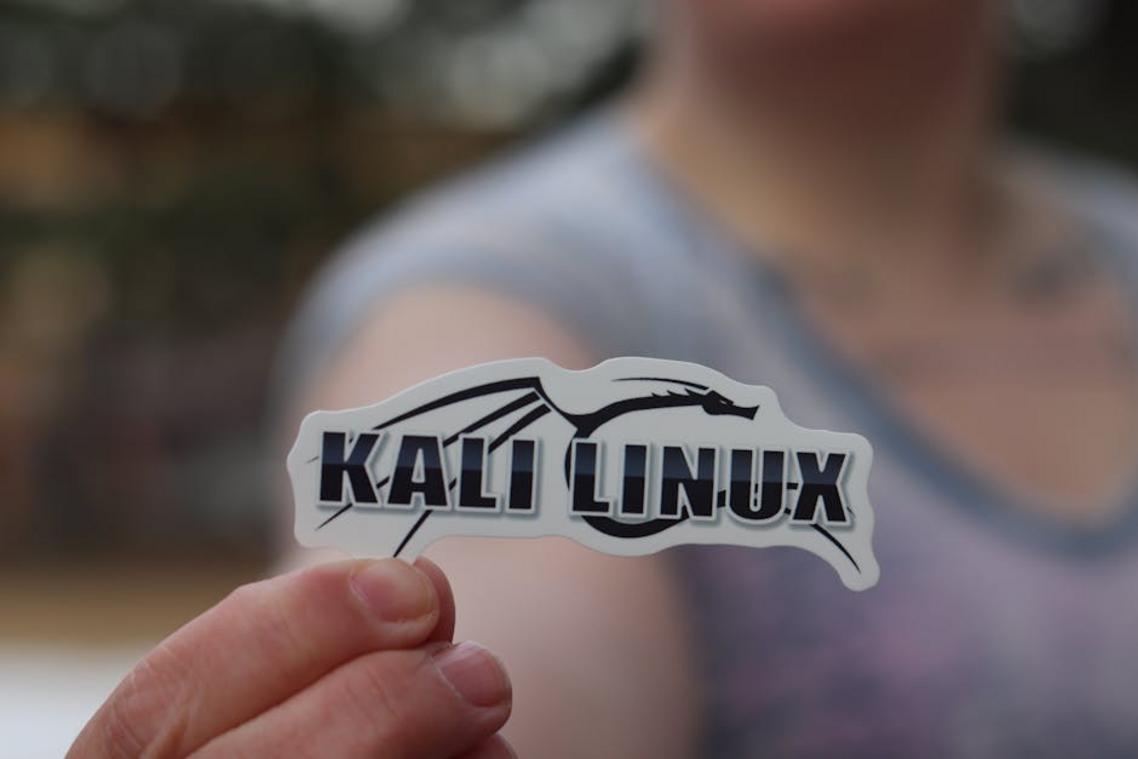
When you download a Linux distribution, the file usually comes as an ISO image, a complete digital copy of an installation disc. But here’s the catch: you can’t just drag and drop it onto a USB drive. It needs to be flashed, a process that writes the image in a way that makes the USB bootable, meaning your computer can start up from it.
Why does this matter? A properly flashed USB drive just works, it’s the difference between a smooth Linux installation and hours of troubleshooting errors that make you want to throw your computer out the window.
One of the easiest tools for this job is BalenaEtcher. It’s free, beginner-friendly, and works on Windows, macOS, and Linux.
Follow these steps:
- Download and install BalenaEtcher.
- Open the application and click “Flash from file” to select the Linux .iso file you downloaded.
- Click “Select target” and choose your USB drive from the list. Double-check it’s the correct one!
- Click “Flash!” and wait for the process to complete and verify.
That’s it. In minutes, you’ll have a reliable installer ready to go. (Pro tip: use a USB drive with at least 8GB for best results.) Once your system is running, you can even explore guides like how to optimize your smartphone for better performance to fine-tune your tech life further.
The main event: a step-by-step walkthrough of the installation
This is where it gets real, the montage scene before the hero levels up.
Restart your computer and hit F2, F12, or DEL as it powers on. It’s basically a reflex game at this point. You’ll land in the BIOS/UEFI menu, where you’re hunting for Boot Order settings. Bump your USB drive to the top of the list. Save it. Exit out. Then you’re relying on the system to actually boot from USB instead of defaulting back to your internal drive, which isn’t always guaranteed, but that’s the move.
Step 2: Starting the Installer: You’ll see an option to either “Try” or “Install” Linux. Go straight to Install. We’re not window-shopping here, we’re moving in.
Step 3: Basic Configuration:
The installer will ask for:
- Language
- Keyboard layout
- Wi-Fi connection
Pick your preferences carefully (especially keyboard layout, QWERTY vs. Something else can be a surprise plot twist).
Step 4: Installation Type (The Most Important Choice):
You’ll typically see two options:
- Install alongside Windows (dual-boot)
- Erase disk and install Linux
For simplicity in this install Linux for beginners guide, choose Erase disk. It avoids partition confusion and setup drama.
Bold warning: This will delete everything on the drive. Back up first. No “Avengers: Endgame” time travel fixes.
Step 5: Final Details. Pick your timezone, then set up your account with a name, computer name, username, and a strong password. Use a password manager, seriously, it’ll save you headaches down the road.
Click install, wait, and enjoy the transformation.
After installation, restart when prompted. Pull out the USB drive the moment the screen goes black, skip this and you’ll hit boot errors, per reports all over Linux forums. Once you’re on the desktop, grab system updates first using Software Updater. Security researchers point out that most vulnerabilities get patched within days, so doing this actually matters. Then head to the Software Center, where you’ll find apps with ratings, screenshots, and one-click installs. It doesn’t feel like hacking the Matrix. It’s just regular shopping.
You’ve successfully installed linux: what’s next?
You’ve just tackled a major technical milestone. What once felt complex? It’s now proof that Install Linux for beginners is absolutely achievable with the right guidance. Now comes the fun part, exploring your new desktop, tweaking your settings, diving into powerful free, open-source software. Ready to go further? Our top-rated Linux tutorials will help you master your system.
 There is a specific skill involved in explaining something clearly — one that is completely separate from actually knowing the subject. Zayric Vornhaven has both. They has spent years working with software development insights in a hands-on capacity, and an equal amount of time figuring out how to translate that experience into writing that people with different backgrounds can actually absorb and use.
Zayric tends to approach complex subjects — Software Development Insights, Tech Tutorials and How-To Guides, Emerging Tech Trends being good examples — by starting with what the reader already knows, then building outward from there rather than dropping them in the deep end. It sounds like a small thing. In practice it makes a significant difference in whether someone finishes the article or abandons it halfway through. They is also good at knowing when to stop — a surprisingly underrated skill. Some writers bury useful information under so many caveats and qualifications that the point disappears. Zayric knows where the point is and gets there without too many detours.
The practical effect of all this is that people who read Zayric's work tend to come away actually capable of doing something with it. Not just vaguely informed — actually capable. For a writer working in software development insights, that is probably the best possible outcome, and it's the standard Zayric holds they's own work to.
There is a specific skill involved in explaining something clearly — one that is completely separate from actually knowing the subject. Zayric Vornhaven has both. They has spent years working with software development insights in a hands-on capacity, and an equal amount of time figuring out how to translate that experience into writing that people with different backgrounds can actually absorb and use.
Zayric tends to approach complex subjects — Software Development Insights, Tech Tutorials and How-To Guides, Emerging Tech Trends being good examples — by starting with what the reader already knows, then building outward from there rather than dropping them in the deep end. It sounds like a small thing. In practice it makes a significant difference in whether someone finishes the article or abandons it halfway through. They is also good at knowing when to stop — a surprisingly underrated skill. Some writers bury useful information under so many caveats and qualifications that the point disappears. Zayric knows where the point is and gets there without too many detours.
The practical effect of all this is that people who read Zayric's work tend to come away actually capable of doing something with it. Not just vaguely informed — actually capable. For a writer working in software development insights, that is probably the best possible outcome, and it's the standard Zayric holds they's own work to.