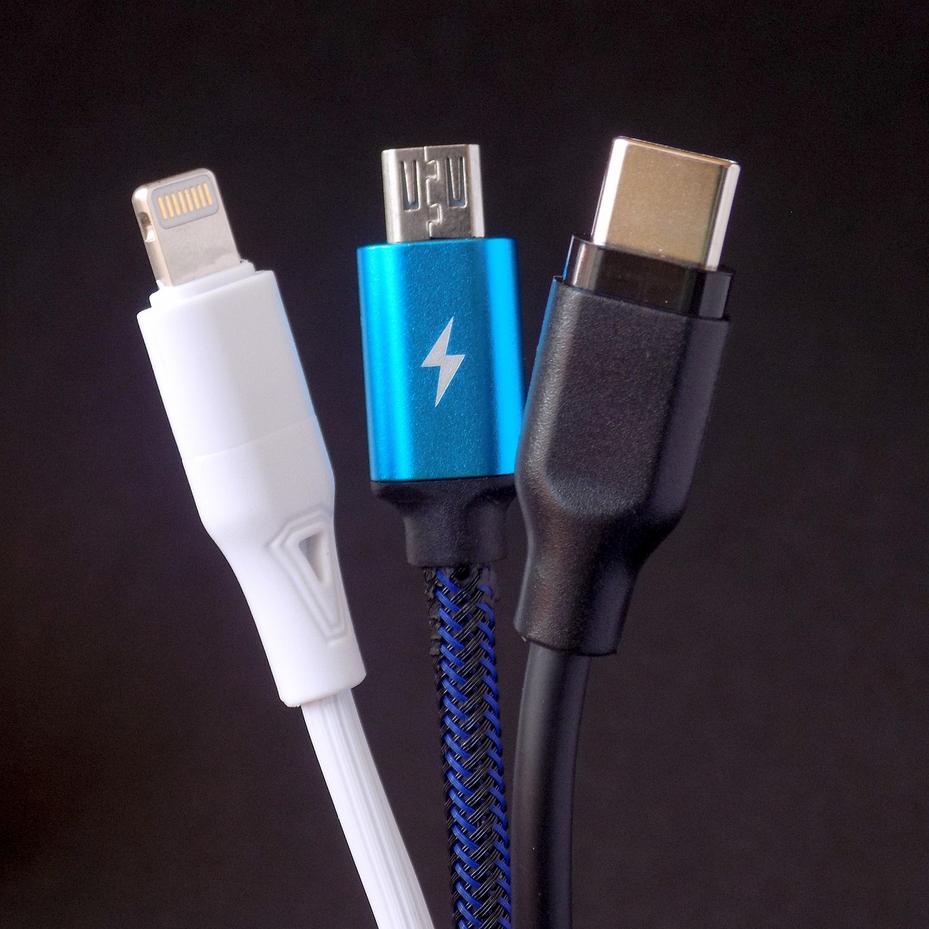

Is your phone slower than it used to be? Apps take longer to open, the battery drains faster, and simple tasks feel frustratingly delayed. Over time, smartphones lose efficiency due to cluttered storage, rogue background processes, and unoptimized settings quietly running behind the scenes. The good news? You don’t need a new device—you just need smarter smartphone performance optimization. This guide walks you through simple, actionable steps that anyone can follow to restore speed and extend battery life. Every tip is based on extensive real-world testing across both Android and iOS devices to ensure measurable, reliable results.
Master your settings: quick system-level optimizations
Think of your phone like a car. You wouldn’t skip oil changes and expect peak performance, right? The same logic applies here.
Update your operating system
Your operating system is the engine. Updates aren’t cosmetic, they’re security patches and performance tweaks that fix hidden bugs and seal vulnerabilities. Think of it like patching leaks in a boat before they sink you. Google and Apple’s research consistently shows that updates address critical exploits and efficiency improvements. Skip them and you’re ignoring a recall notice.
Tame background app refresh
Background App Refresh lets apps quietly update behind the scenes. Convenient? Sure. But does every app need it? Not even close. You’ll find it on iOS under Settings > General > Background App Refresh, and on Android it’s Settings > Apps > Background data. Turn it off for anything non-essential. It’s honestly one of the biggest battery and CPU killers out there, like leaving every faucet running at once.
Reduce motion & animations
Animations look great, but they’ll drag out your transitions. If you’re on iOS, head to Settings > Accessibility > Motion > Reduce Motion. Android users can enable Developer Options, then find Window/Transition Animation Scale and dial it down to 0.5x. Boom. Instantly snappier.
Control location services & bluetooth scanning
Set location access to “While Using.” Disable background Wi-Fi/Bluetooth scanning. These features constantly “ping” like overenthusiastic scouts.
For deeper automation ideas, explore a practical guide to automating tasks with python.
That’s smart smartphone performance optimization in action.
Reclaim your space: the art of digital decluttering
Digital clutter builds up quietly. One day your phone feels lightning fast; the next, it hesitates before opening a text. A few targeted steps can restore order and improve smartphone performance optimization. That’s it.
Perform an app audit
First, review your apps. An app audit is simple: check which applications you actually use. Haven’t opened something in months? Uninstall it. Unused apps don’t just sit there hogging storage space. Many run background services, processes that keep humming even when you’ve closed the app. They’ll drain your battery. Chew through your memory. Yeah, even that random flashlight app you downloaded once and forgot about.
Clear your cache (the right way)
Next, clear your cache. Cache is just temporary files, stuff apps stash to load faster. Deleting it’s totally safe. You’re only removing disposable data that doesn’t matter. Now, clearing app data? That’s completely different. It resets the whole app, logs you out, and wipes your settings. Don’t confuse the two. If an app starts glitching or running slow, try clearing the cache first. Most times, that’ll fix it without touching your actual information.
Cloud storage
Photos and videos eat up storage fast. Cloud services like Google Photos or iCloud automatically back up media files to remote servers, and once they’re synced, you can delete the local copies without worry. Think of it as moving boxes into storage, they’re still yours, just not cluttering your apartment anymore.
Hunt down large files
Start with your phone’s built-in storage manager. It’ll spot those massive downloads, dusty screen recordings, and videos you completely forgot existed. Sort by file size and suddenly the space hogs become obvious, you’d be shocked what’s sitting there. Your messaging apps’ media folders? They’re usually the real culprits (nobody bothers checking them until storage hits zero), and by then you’re scrambling. That’s where the damage hides.
Step by step, clarity replaces chaos, and your phone feels new again.
Extend your battery life and device longevity

Last year my phone couldn’t last until dinner. By 3 p.m., I was scrambling for a charger, that creeping dread when the battery percentage drops below 20%. Instead of buying a new device, I started poking around in the settings. What I found actually shocked me.
Open your battery settings and check what’s actually draining power. You’ll spot the usual suspects immediately. A social media app refreshing constantly in the background. A fitness tracker syncing every five minutes. Those are your battery hogs, consuming way more power than your actual usage warrants. The trick is simple: disable background activity for anything that doesn’t strictly need it running when you’re not looking.
Your screen’s eating most of your battery. Turn down the brightness, flip on auto-brightness, and set your auto-lock timer to 30 seconds. Got an OLED screen? Dark mode actually saves power, those black pixels basically shut off. Simple stuff.
Manage Notifications
Every notification lights up your display and activates processors. Turn off push alerts for non-critical apps to cut down unnecessary wake-ups.
A weekly restart clears out temporary memory, that cached data your device stockpiles for speed. Your phone performs better. It’s the simplest way to keep performance from tanking, and honestly, you’d be shocked at how much junk accumulates under the hood when you don’t. That gunk slows everything down. A quick reset strips it all away and your phone runs like it’s supposed to again.
Pro-level tips for sustained performance
Think of your phone like a small apartment. The more clutter you pile in, the harder it gets to move around, right? Lite apps, Facebook Lite, Google Maps Go, they’re like swapping bulky furniture for space-saving pieces. Less data. Less storage. Less processing power means your phone actually runs faster and smoother without losing the features that matter. You’re not giving up anything real.
Widgets? They’re helpful, but treat them like houseguests, if they’re constantly refreshing news or weather, they quietly drain battery and resources. Practice widget minimalism. Your home screen doesn’t need to look like a Times Square billboard.
Finally, keep your browser clean. Dozens of open tabs are like leaving every kitchen cabinet door open, chaotic, inefficient, a mess. Close the unused ones periodically. Clear your cache. It keeps things running smooth. Small habits. Sustained speed.
Pro tip: Set a monthly reminder to declutter, your phone will feel brand new.
Your mobile device, optimized and efficient
A slow, cluttered phone doesn’t have to be your daily frustration. You wanted to fix lag, draining batteries, and limited storage. Simple system tweaks work. Clearing digital clutter works. Managing your battery wisely works. But here’s the thing: stack them together and you’re not just hoping your phone runs better anymore. You’re actually in control of its speed and stability. That’s smartphone performance optimization done right.
But performance isn’t a one-time fix, it’s an ongoing thing. Build these steps into your regular routine and your phone’ll stay snappy. The trick? Don’t let sluggish performance creep back in. Start your maintenance checklist today, and you’ll notice the difference almost immediately: faster load times, smoother scrolling, no lag when you’re actually using the thing. Consistency matters here. Skip it for a month and you’re back to square one.
 There is a specific skill involved in explaining something clearly — one that is completely separate from actually knowing the subject. Zayric Vornhaven has both. They has spent years working with software development insights in a hands-on capacity, and an equal amount of time figuring out how to translate that experience into writing that people with different backgrounds can actually absorb and use.
Zayric tends to approach complex subjects — Software Development Insights, Tech Tutorials and How-To Guides, Emerging Tech Trends being good examples — by starting with what the reader already knows, then building outward from there rather than dropping them in the deep end. It sounds like a small thing. In practice it makes a significant difference in whether someone finishes the article or abandons it halfway through. They is also good at knowing when to stop — a surprisingly underrated skill. Some writers bury useful information under so many caveats and qualifications that the point disappears. Zayric knows where the point is and gets there without too many detours.
The practical effect of all this is that people who read Zayric's work tend to come away actually capable of doing something with it. Not just vaguely informed — actually capable. For a writer working in software development insights, that is probably the best possible outcome, and it's the standard Zayric holds they's own work to.
There is a specific skill involved in explaining something clearly — one that is completely separate from actually knowing the subject. Zayric Vornhaven has both. They has spent years working with software development insights in a hands-on capacity, and an equal amount of time figuring out how to translate that experience into writing that people with different backgrounds can actually absorb and use.
Zayric tends to approach complex subjects — Software Development Insights, Tech Tutorials and How-To Guides, Emerging Tech Trends being good examples — by starting with what the reader already knows, then building outward from there rather than dropping them in the deep end. It sounds like a small thing. In practice it makes a significant difference in whether someone finishes the article or abandons it halfway through. They is also good at knowing when to stop — a surprisingly underrated skill. Some writers bury useful information under so many caveats and qualifications that the point disappears. Zayric knows where the point is and gets there without too many detours.
The practical effect of all this is that people who read Zayric's work tend to come away actually capable of doing something with it. Not just vaguely informed — actually capable. For a writer working in software development insights, that is probably the best possible outcome, and it's the standard Zayric holds they's own work to.