
If you’re searching for a home network setup tutorial, you probably want more than just a basic checklist—you want clear, practical guidance that actually works. Setting up a reliable home network can feel overwhelming, especially with so many routers, modems, mesh systems, and security options on the market. One wrong configuration can mean slow speeds, weak coverage, or vulnerable devices.
This article is designed to walk you through the process step by step, from choosing the right equipment to optimizing performance and securing your connection. We break down technical concepts into plain language and include actionable tips you can implement immediately.
Our guidance is based on current networking standards, real-world testing of consumer hardware, and insights drawn from industry best practices in connectivity and cybersecurity. By the end, you’ll have a stable, secure, and high-performing home network built to handle streaming, gaming, remote work, and smart home devices with confidence.
I still remember the night my Wi-Fi cut out during a crucial video call—frozen screen, awkward silence, sheer frustration. Slow speeds, buffering movies, and random dead zones aren’t rare; they’re everyday headaches in many homes. So let’s fix that. This home network setup tutorial walks you step by step through choosing the right router (your network’s traffic controller), placing it strategically, and locking down essential security settings. Along the way, I’ll translate the jargon into plain English. By the end, you’ll have a fast, stable, and secure connection ready for streaming, gaming, and uninterrupted work-from-home days.
Step 1: Choosing the Right Hardware for Your Needs
First things first: let’s clear up a common confusion. A modem connects your home to your Internet Service Provider (ISP)—it’s the bridge between your house and the wider internet. A router, on the other hand, creates your local network, broadcasting Wi‑Fi so your phone, laptop, and smart TV can get online. (Think of the modem as the front door and the router as the host letting everyone in.)
Next, consider whether to rent ISP-provided gear or buy your own. ISP gateways (a combined modem/router) are convenient and pre-configured. However, they often lack advanced security controls, strong signal range, and performance tuning. Buying your own router typically means faster speeds, better parental controls, firmware updates, and long-term savings on rental fees.
When comparing devices, pay attention to Wi‑Fi standards:
- Wi‑Fi 6 (802.11ax): Handles more devices efficiently and improves speed.
- Wi‑Fi 6E: Adds access to the 6 GHz band for less congestion.
- Wi‑Fi 7: Offers even higher throughput and lower latency for future-proofing.
Finally, choose a mesh system if you have multiple floors, thick walls, or over 2,500 square feet. Mesh nodes work together to eliminate dead zones and provide seamless roaming—ideal for a smooth home network setup tutorial experience.
Step 2: Strategic Placement for Maximum Coverage
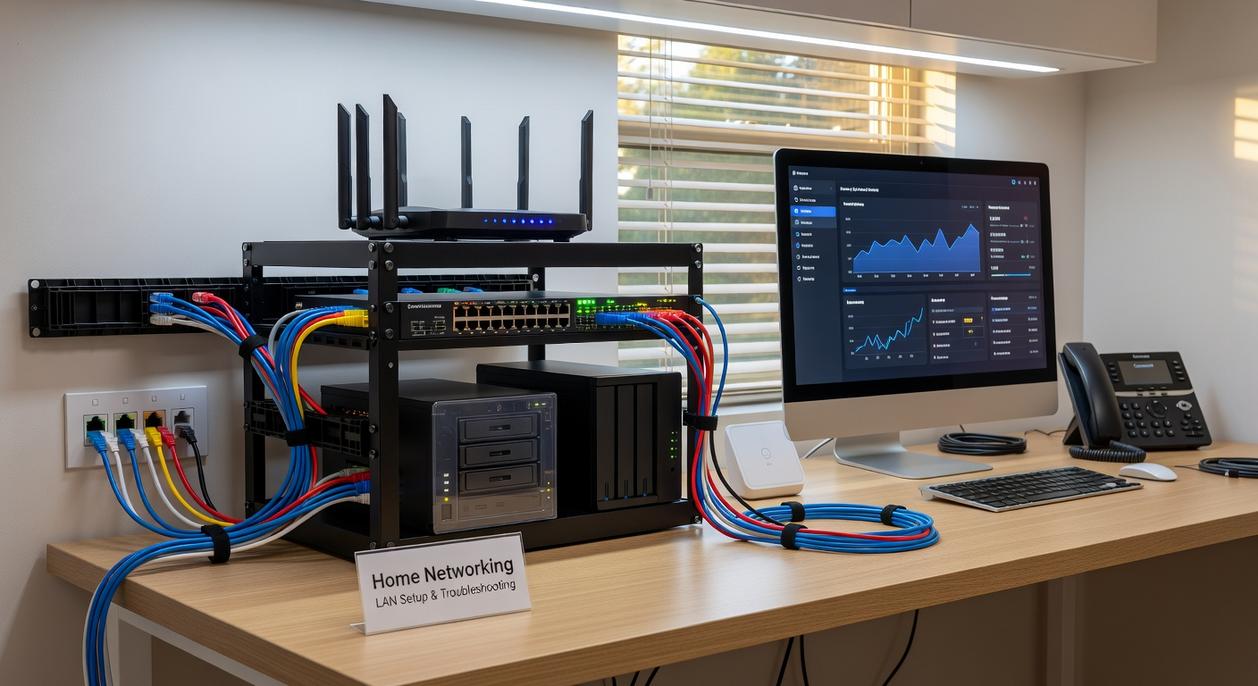
Now that your equipment is ready, placement makes all the difference. The Central Location Rule is simple: place your router in a central, open, and elevated spot. Wi-Fi signals radiate outward like ripples in water, so positioning it in the middle of your home helps distribute coverage evenly. A high shelf in a living room or hallway often works better than a corner office. (Yes, hiding it behind the TV stand is tempting—but resist.)
However, many people unintentionally sabotage their signal. Avoid placing your router inside cabinets, on the floor, or near thick concrete walls. Metal objects, aquariums, and even microwave ovens can interfere with signals because they absorb or disrupt radio waves. If your connection drops every time popcorn is made, that’s not a coincidence.
If your router has adjustable antennas, try positioning one vertically and one horizontally. Devices like laptops and phones have antennas oriented differently, so this setup improves multi-device reception. Pro tip: small adjustments—just a few inches—can noticeably boost performance.
Finally, connect the hardware:
- Connect the coaxial cable to the modem.
- Connect the modem to the router’s WAN port with an Ethernet cable.
- Connect power to both devices.
For more step-by-step guidance, see our beginners guide to installing linux on your pc alongside this home network setup tutorial.
Step 3: Essential Settings for Security and Performance
Once your router is physically connected, it’s time to fine-tune the settings that protect your data and improve speed.
1. Access Your Router’s Admin Panel
Most routers have a default IP address (a local web address like 192.168.1.1 or 192.168.0.1) printed on a sticker underneath the device. Type that IP into your web browser’s address bar and log in. You’ll use the default admin credentials listed on the label—just temporarily.
2. Change the Default Admin Login (Critical)
Your router’s administrator account controls every network setting. If you leave the default username and password unchanged, anyone connected could access it (and yes, bots scan for this). Immediately create a strong, unique password. This simple step blocks most unauthorized access attempts.
3. Configure Your Wi-Fi Network Properly
Set a custom SSID (Service Set Identifier)—that’s your Wi-Fi network name. Avoid personal details like your address. Then enable WPA3 encryption (the latest Wi-Fi security standard). If WPA3 isn’t available, choose WPA2-AES. These encryption protocols scramble your data so outsiders can’t read it (think of it as turning your messages into code).
4. Enable a Guest Network
A guest network creates a separate access point for visitors. This keeps your main devices—laptops, smart TVs, security cameras—isolated and protected. Pro tip: Disable guest access when not in use.
5. Check for Firmware Updates
Firmware is your router’s built-in software. Updates often patch security flaws and improve performance. Check the admin panel for updates and install the latest version.
For a complete walkthrough, follow this home network setup tutorial to ensure every step is optimized for both speed and security.
Step 4: Testing Your Speed and Solving Common Problems
First things first, let’s see if your internet is actually delivering what you’re paying for. Head to a reliable speed testing service like Speedtest.net or Fast.com and run a test. You’ll see two key numbers: download speed (how fast data comes to you—think streaming Netflix) and upload speed (how fast data leaves—like posting on Instagram or joining a Zoom call). If your results are far below your plan, something’s off.
Now, before you panic-Google like it’s a tech horror movie, try the universal fix.
- Unplug both modem and router.
- Wait 60 seconds (yes, the full minute).
- Plug in the modem and wait until it fully reconnects.
- Plug in the router.
Next, check for Wi-Fi dead zones. Use a Wi-Fi analyzer app and walk around your space to map signal strength. If bars drop like a weak meme, consider a mesh system. Pro tip: revisit your home network setup tutorial if issues persist.
Your network is no longer running on factory defaults. You’ve configured it for speed, coverage, and protection—and that changes everything. The old pain point—buffering movies, dropped Zoom calls, random lag spikes—is gone because you moved beyond the basic home network setup tutorial and actually optimized it.
Now you get:
- Uninterrupted 4K streaming
- Lag-free online gaming
- Stronger Wi-Fi security with updated passwords and encryption
Pro tip: Reboot your router monthly and review connected devices to keep performance sharp.
This upgraded network is your foundation, ready for smart devices, future upgrades, and whatever tech comes next. You are fully in control now.
Take Control of Your Home Network Today
You came here looking for a clear, step-by-step home network setup tutorial, and now you have the knowledge to build a faster, more secure, and more reliable connection. No more buffering during important calls. No more dead zones in the bedroom. No more guessing why your Wi‑Fi keeps dropping.
A slow or unstable network isn’t just frustrating — it disrupts your work, your entertainment, and your daily routine. The good news? You now understand exactly what causes those issues and how to fix them.
The next step is simple: put this into action. Start optimizing your router placement, secure your network, and configure your settings for maximum performance today.
If you want deeper guidance, expert comparisons, and proven step-by-step tech tutorials trusted by thousands of readers, explore more of our in-depth guides now. We break down complex tech into practical solutions that work.
Don’t settle for weak signals and constant interruptions. Upgrade your network setup today and experience the speed and stability you’ve been missing.
 There is a specific skill involved in explaining something clearly — one that is completely separate from actually knowing the subject. Zayric Vornhaven has both. They has spent years working with software development insights in a hands-on capacity, and an equal amount of time figuring out how to translate that experience into writing that people with different backgrounds can actually absorb and use.
Zayric tends to approach complex subjects — Software Development Insights, Tech Tutorials and How-To Guides, Emerging Tech Trends being good examples — by starting with what the reader already knows, then building outward from there rather than dropping them in the deep end. It sounds like a small thing. In practice it makes a significant difference in whether someone finishes the article or abandons it halfway through. They is also good at knowing when to stop — a surprisingly underrated skill. Some writers bury useful information under so many caveats and qualifications that the point disappears. Zayric knows where the point is and gets there without too many detours.
The practical effect of all this is that people who read Zayric's work tend to come away actually capable of doing something with it. Not just vaguely informed — actually capable. For a writer working in software development insights, that is probably the best possible outcome, and it's the standard Zayric holds they's own work to.
There is a specific skill involved in explaining something clearly — one that is completely separate from actually knowing the subject. Zayric Vornhaven has both. They has spent years working with software development insights in a hands-on capacity, and an equal amount of time figuring out how to translate that experience into writing that people with different backgrounds can actually absorb and use.
Zayric tends to approach complex subjects — Software Development Insights, Tech Tutorials and How-To Guides, Emerging Tech Trends being good examples — by starting with what the reader already knows, then building outward from there rather than dropping them in the deep end. It sounds like a small thing. In practice it makes a significant difference in whether someone finishes the article or abandons it halfway through. They is also good at knowing when to stop — a surprisingly underrated skill. Some writers bury useful information under so many caveats and qualifications that the point disappears. Zayric knows where the point is and gets there without too many detours.
The practical effect of all this is that people who read Zayric's work tend to come away actually capable of doing something with it. Not just vaguely informed — actually capable. For a writer working in software development insights, that is probably the best possible outcome, and it's the standard Zayric holds they's own work to.