Why Build a Home Server in 2026?
Building your own home server with a Raspberry Pi might sound like a niche tech project. But in 2026, it’s rapidly becoming a smart, secure choice for anyone who wants more control over their digital life. Here’s why more people are taking the DIY route.
Take Back Ownership of Your Data
In the age of always online services, your personal files, photos, and projects often live in someone else’s cloud. A home server puts the power back in your hands.
Privacy first: No need to rely on third party providers to store sensitive data
Complete control: Choose which apps run on your server and how your information is accessed
Secure by design: With the right setup, your local server is less of a target for mass breaches
Save Money Over Time
A Raspberry Pi doesn’t just give you control it offers an affordable entry point into server ownership.
One time hardware purchase: No monthly cloud hosting fees or service subscriptions
Energy efficient: Raspberry Pi models use significantly less power than full size PCs or servers
Repurpose old gear: Expand storage using USB drives or SSDs you already own
Growing Demand for Local Hosting
Self hosting isn’t just for developers anymore. The rise of user friendly platforms has opened the door to a world of customizable tools and services.
Media servers: Stream your own movies and music with apps like Jellyfin or Plex
File syncing: Keep control of your documents with open source tools like Nextcloud
Home automation & more: Host your smart home dashboard, personal wiki, or even your own blog
As digital privacy concerns grow and monthly cloud costs add up, owning your data and managing it on your own terms just makes sense. A Raspberry Pi home server offers the perfect balance of simplicity, power, and customization.
What You’ll Need
Before anything else, you’ll need the right hardware. Nothing fancy just the essentials to get your home server up and running.
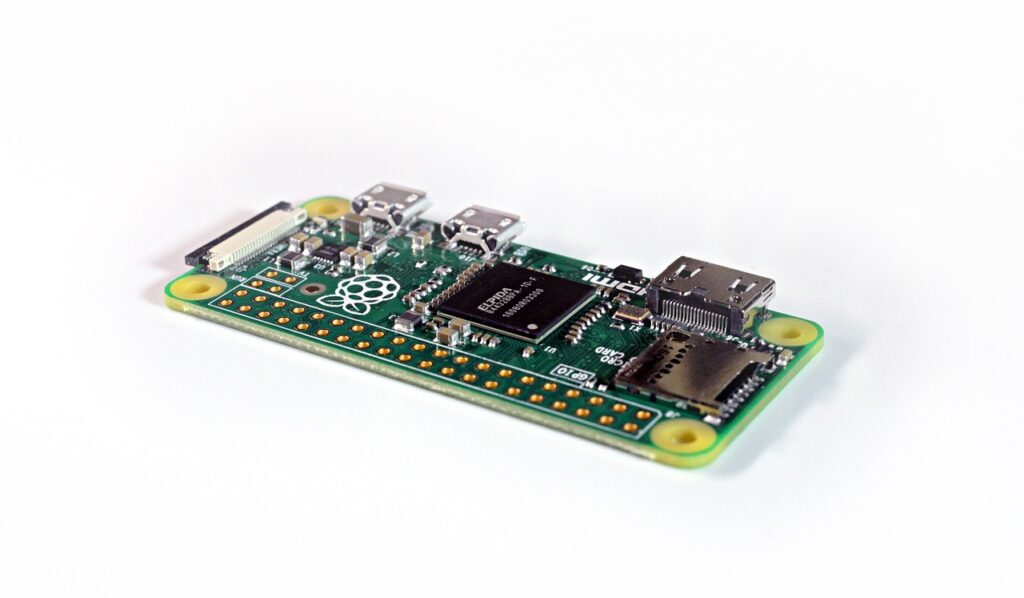
Raspberry Pi 4 (or newer model): The heart of the setup. Anything earlier won’t cut it for stable server tasks. The 4 model offers decent performance and enough RAM to keep things smooth. If you’ve got a Raspberry Pi 5, even better.
microSD card (32GB minimum, Class 10 recommended): This is your Pi’s main drive, so go for speed and reliability. Anything less than 32GB will fill up fast.
Power supply: Use the official one. It’s tempting to grab an old phone charger from a drawer, but power instability can corrupt your system or worse, brick your Pi over time. Stick with the real thing.
Ethernet cable or reliable Wi Fi: Wired is better faster, more stable, fewer headaches. But if Wi Fi is your only option, make sure the signal is strong and stable to avoid random disconnects.
Optional: USB drive or external SSD: For those planning to store large media libraries or keep constant backups, external storage is a smart upgrade. SSDs bring speed, but even a solid USB 3.0 stick will do the trick.
Keep it lean, but don’t skimp where it counts. This is your digital home base make it solid.
Step 1: Prep Your Raspberry Pi
Setting up your Pi isn’t complicated, but you’ve got to start clean.
First, download Raspberry Pi Imager from the official Raspberry Pi website. Plug your microSD card into your computer, launch the Imager, and select “Raspberry Pi OS (32 bit)” under the “Operating System” menu. Choose your SD card from the list, click “Write,” then wait it’ll take a few minutes.
If you’re going headless (no monitor or keyboard), enabling SSH and Wi Fi right now saves serious time later. After flashing, open the SD card on your computer. In the root directory, create a blank file named ssh no extension. That turns on remote access. Next, make a file called wpa_supplicant.conf and add this:
Save it, eject the card safely, plug it into your Pi, and power it on. It’ll boot and connect to Wi Fi within a minute or two.
To connect, open a terminal on your main computer and type:
Default password is raspberry. If that works, you’re in. The terminal is now your control panel.
Step 2: Secure Your Server

Your server’s only as strong as its weakest default setting. Before doing anything fancy, lock down access and close the obvious gaps.
Change Default Login Credentials
The default username for Raspberry Pi OS is usually pi, and the default password is public knowledge. That’s a problem. First, log in and change it:
Better yet, create a new user with sudo privileges, then delete the default one after verifying login:
Log out, test new login, then remove pi:
Install and Configure UFW Firewall
Uncomplicated Firewall (UFW) gives you basic protection without drama. Install it:
Allow SSH first very important so you don’t get locked out:
You can add other rules if you run web servers or media apps later. For now, blocking the rest keeps things tight.
Update Packages and Enable Auto Updates
Outdated software is an open invitation to trouble. First, check for updates:
Then install unattended upgrades:
This keeps critical patches flowing in without your daily involvement. It won’t cover everything, but it catches the big stuff.
Your box is now less of a sitting duck. Next, you figure out what it does.
Step 3: Choose Your Server’s Role(s)
Before you dive into installations, figure out what you actually want this server to do. The Pi can wear many hats. Here are the most common use cases, broken down:
File Server (Samba or Nextcloud):
Want Dropbox style access without handing your data to a third party? A Samba setup gets you basic file sharing across your network fast, lightweight, and easy. If you want something more feature rich, like calendars, contacts, and remote access, Nextcloud turns your Pi into a full private cloud. Great for personal documents, photos, and collaborative sharing.
Media Hub (Plex or Jellyfin):
Got a pile of movies, music, or family videos? Plex or Jellyfin will serve them up to TVs, phones, or laptops with slick UIs and metadata magic (think poster art, subtitles pulled in automatically, resume playback). Jellyfin is open source and fully self hosted. Plex has free options but leans on subscriptions for extras.
Personal Website (Apache/Nginx + WordPress):
Running a blog, portfolio, or landing page? The Pi can pull it off. Apache and Nginx are two solid web servers pick one. Slap on WordPress if you want a familiar interface and plugins. Not blazing fast, but more than enough for a personal presence or dev sandbox.
Git or Code Host:
Want full control of your coding projects? Host your own Git repo or even spin up a lightweight Gitea instance GitHub style workflow, entirely in your own hands. Handy for solo devs or small teams who care about privacy or just want to tinker.
Pick One or Combine a Few:
If you’re just starting out, focus on one feature and get it humming. Later, layer on more. The Pi won’t replace a full on enterprise server, but with the right balance, it can juggle a surprising amount. Just keep an eye on memory and load.
Plan with intention. Don’t run Plex and compile code in the same breath without knowing what your Pi can realistically handle. Good rule of thumb: start small, optimize often.
Step 5: Access Your Server Remotely
Getting remote access to your home server is handy, but don’t rush into it blind. There are a few moving parts and a few security risks you’ll want to handle carefully.
First up: your home IP address probably isn’t static. That means it could change without warning, breaking your connection. That’s where Dynamic DNS (DDNS) comes in. You can use a free service like DuckDNS or No IP to link your changing IP to a fixed hostname. Install the DDNS client on your Raspberry Pi and let it keep everything synced in the background.
Next is port forwarding. This tells your router to send outside traffic to your Pi. But here’s the catch it can open doors you don’t want wide open. Only forward the ports you absolutely need. Use high numbered, non standard ports if possible, and monitor them regularly. Skip this step if you can get by without it.
Finally, for secure remote access, WireGuard is your friend. It’s fast, lightweight, and way more secure than exposing services directly. You’ll need to install it on both the Pi and the device you’re connecting from. Once set up, you can tunnel into your local network as if you were at home without broadcasting open ports to the internet.
Remote access isn’t plug and play. Do it right, and you get freedom without the risk. Do it wrong, and you’re a soft target.
Optional: Expand with Docker
Introduction to Lightweight Containerization
Docker is a lightweight container platform that allows you to run applications in isolated environments. Instead of installing apps directly onto your Raspberry Pi’s OS and dealing with dependency conflicts, Docker packages applications into containers that handle everything internally. This makes it easier to experiment and scale your server.
Why Docker is a Game Changer for Home Servers:
Isolated environments: Each application runs independently, reducing conflict risk
Quick deployment: Pull and run most apps with just one command
Cleaner system: Fewer manual installs, less OS clutter
Easy rollback: Revert to a previous container version if something breaks
Simplifying App Management and Updates
Managing server applications manually can get complicated, especially when updates introduce breaking changes. Docker simplifies this process:
Unified configuration: Use docker compose to define and manage multi container apps
Streamlined updates: Pulling updated containers and restarting them is often faster and safer than full reinstallation
Community support: Thousands of prebuilt images available for tools like Nextcloud, Jellyfin, and WordPress
If you’re planning to host multiple services or want to experiment with different app setups, Docker offers a safe and scalable way to do so without cluttering your base system.
Learn more about modern dev environments: Beginner’s Guide to Creating a Mobile App with Flutter
Final Notes on Maintenance
Once your home server is up and running, long term stability comes down to one thing: maintenance. This isn’t a set it and forget it setup. A few simple routines will keep everything running smooth.
Start with backups. Automate them. Whether you’re backing up media libraries, config files, or databases, schedule regular snapshots to an external drive or cloud sync. Don’t wait for something to break before thinking about it.
Next, monitor your Pi’s health. Tools like htop, vcgencmd, or basic system monitors will give you live CPU usage and temperature stats. Most Pis throttle performance if temps go above 80°C, so make sure your case has passive or active cooling if needed.
Finally, keep things clean. Update packages weekly sudo apt update && sudo apt upgrade to patch security holes. Remove unused apps. Check your storage so you don’t choke on logs or temp files. A lean system is a stable system.
These steps are easy to skip, but skipping them costs more time down the line. Build these habits early; your future self will thank you.
bash\n sudo apt update && sudo apt upgrade\n bash\n curl fsSL https://repo.jellyfin.org/install-debuntu.sh | bash\n bash\n sudo apt install jellyfin\n bash\n sudo systemctl start jellyfin\n sudo systemctl status jellyfin\n bash\n sudo apt install snapd\n bash\n sudo snap install nextcloud\n \n http://
 Chief Content Officer